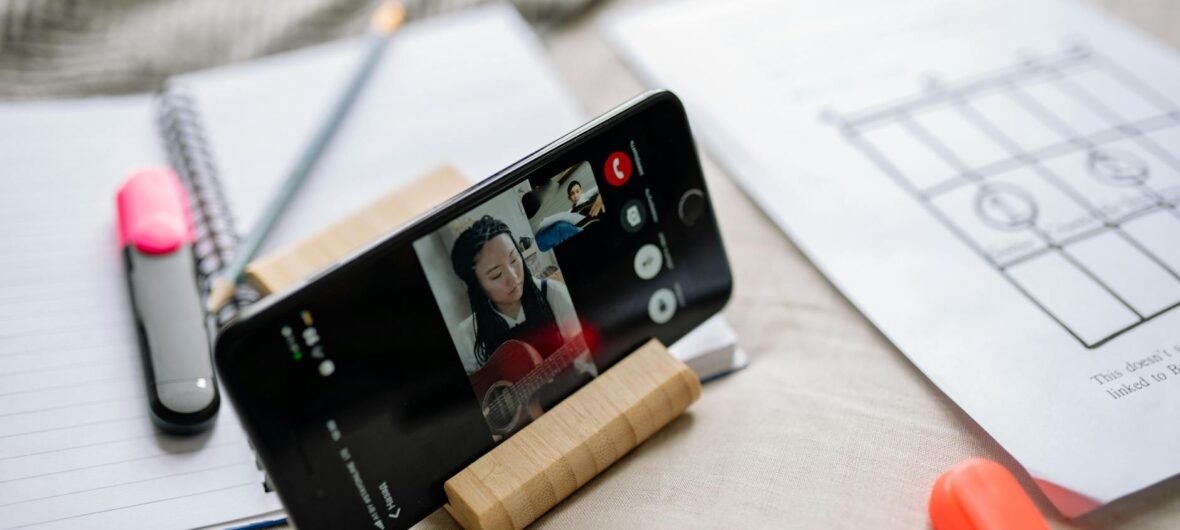
Why Zoom Has Become a Game-Changer for Online Dance Lessons
If you’ve ever searched for how to use Zoom for live online dance lessons tips, you’re already ahead of the curve. Since the rise of virtual learning, Zoom has quietly become one of the most powerful tools in a dancer’s arsenal — whether you’re a complete beginner trying a first salsa class or an intermediate hip-hop student refining your technique. The platform offers real-time interaction, screen sharing, and a face-to-face connection that pre-recorded videos simply can’t replicate. But getting the most out of your virtual dance session takes a little know-how. Let’s break it all down.
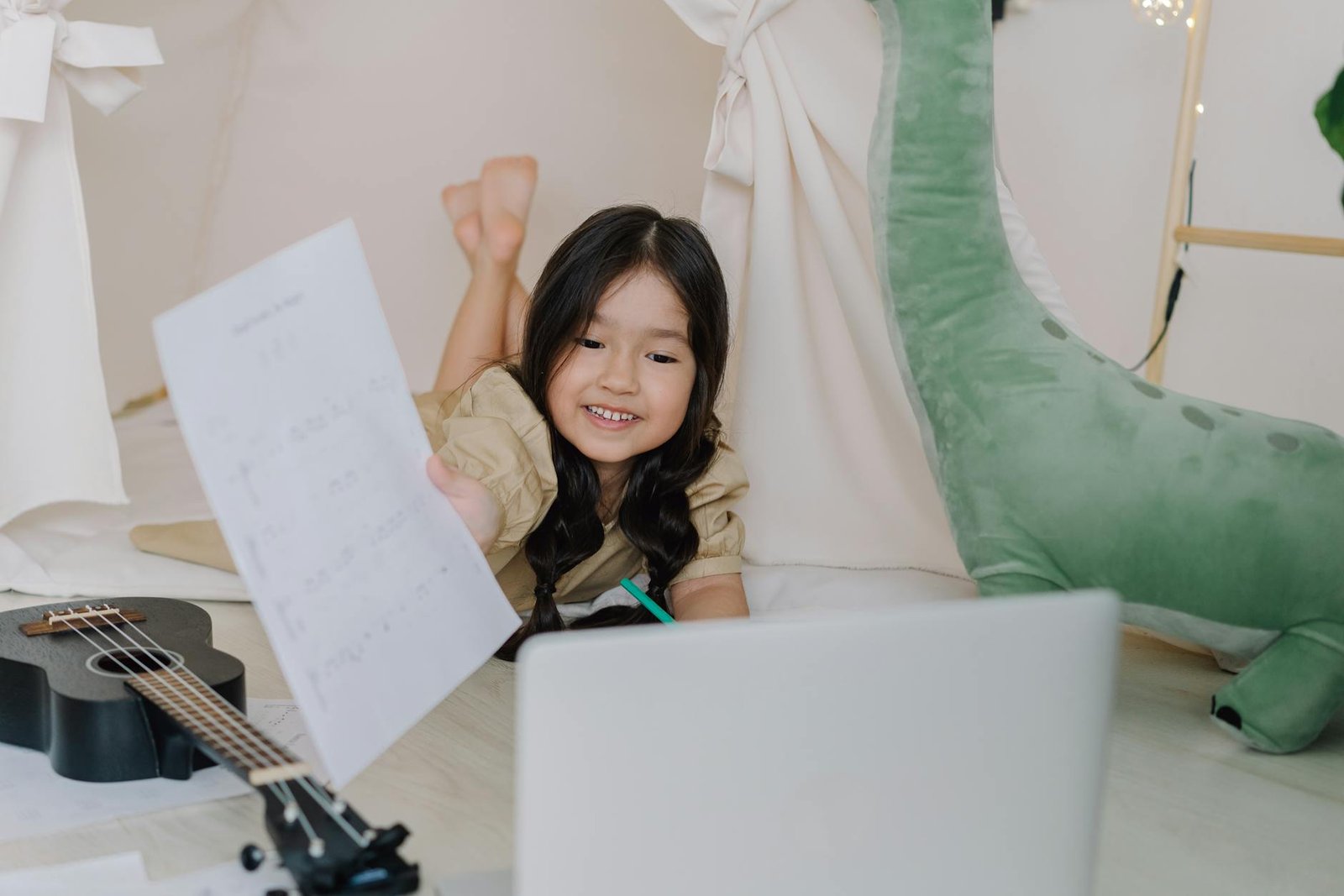
Setting Up Your Dance Space for Maximum Zoom Visibility
Before you even open Zoom, your physical environment matters enormously. Unlike a traditional studio, your home space needs to work double-duty as both your dance floor and your filming location.
- Clear the floor: Move furniture to the walls to give yourself as much open space as possible. Ideally, aim for at least a 6×6 foot clear area.
- Choose your background wisely: A plain wall or a tidy room looks professional and won’t distract your instructor or classmates. Avoid busy backgrounds that make it hard to see your movements.
- Use a non-slip surface: If you’re dancing on hardwood or tile, place a dance-specific non-slip mat (check options on Amazon like the Balancefrom puzzle exercise mat) to protect yourself and improve grip.
- Consider vertical space: For ballet or contemporary styles, make sure your camera can capture your full arm reach. This often means placing your device lower and further away.
A well-prepared space tells your instructor you’re serious, and it genuinely improves how much feedback you can receive.
Getting Your Camera Angle and Lighting Just Right
Nothing is more frustrating in an online dance lesson than being invisible or poorly lit. Your instructor needs to see your footwork, posture, and arm lines — and that requires intentional camera placement.
Camera Placement Tips
- Place your laptop or tablet on a sturdy adjustable stand — the Lamicall Tablet Stand (available on Amazon) works great and adjusts to multiple heights and angles.
- Position the camera so your whole body is in frame. Step back until you can see from the top of your head to your feet, with a few inches of space above and below.
- For footwork-heavy styles like tap or Irish dance, consider angling the camera slightly downward or setting up a second device aimed at your feet.
Lighting Tips
- Face a natural light source like a window whenever possible — this is the most flattering and clear lighting for video.
- If you dance in the evenings, invest in a small LED ring light. The Neewer 10-inch Ring Light on Amazon is affordable and popular among online instructors and students alike.
- Avoid having a bright light source behind you, as it will turn you into a silhouette on screen.
Optimizing Your Audio for Music and Instructions
Sound is where many online dance lessons fall apart. Zoom’s default audio settings are designed for conversation, not music — and that can mean choppy, compressed beats that are nearly impossible to dance to.
- Enable Original Sound: Go to Zoom Settings → Audio → and check “Show in-meeting option to Enable Original Sound.” Then turn it on during your session. This bypasses Zoom’s noise-suppression filters and preserves the quality of music.
- Use a wired or quality Bluetooth speaker: The JBL Clip 4 or a simple desktop speaker (widely available on Amazon) gives you much better sound than your laptop’s built-in speakers, making it easier to hear the beat clearly.
- Use headphones if your instructor is speaking: Earbuds can help you hear corrections and cues without feedback — just remove one ear so you can still hear the music in the room.
- Discuss music playback in advance: Some instructors play music on their end, while others ask you to queue up your own playlist. Clarify this before class starts so you’re not scrambling.
Zoom Settings and Features Every Dance Student Should Use
Zoom has several built-in features that, when used correctly, can transform your dance lesson experience.
- Gallery View vs. Speaker View: In group classes, use Gallery View so you can see all participants at once — great for group energy and syncing with others. In private lessons, Speaker View keeps your instructor front and center.
- Mirror Your Video: By default, Zoom mirrors your camera for yourself, but your instructor sees the un-mirrored version. Discuss with your instructor which setting works best for learning choreography — some prefer you disable mirroring to match their movements exactly.
- Reactions and Chat: Use the thumbs-up reaction to signal you understand without interrupting, or use the chat box to ask questions during a demonstration without breaking the flow.
- Record the Session: With your instructor’s permission, hit Record so you can review the lesson later. This is one of the biggest advantages of online learning — rewatching lets you catch details you missed in the moment.
- Breakout Rooms: In group classes, instructors may use breakout rooms for partner work or small-group practice. Be ready for this feature and know how to navigate back to the main room.
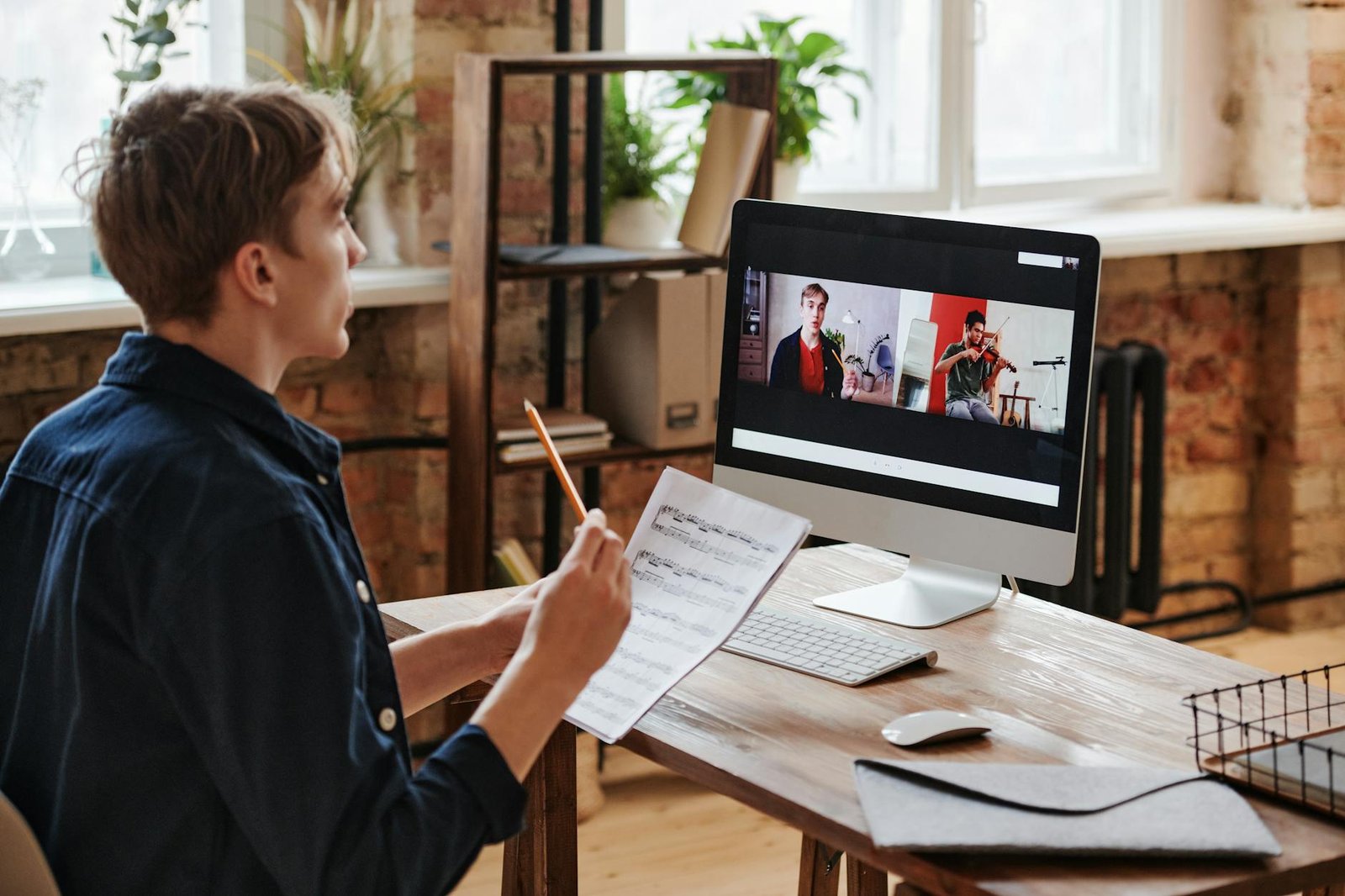
Staying Engaged and Getting the Most Feedback
One of the biggest challenges of online dance lessons is that it’s easy to feel disconnected or shy on camera. Here’s how to stay fully engaged and get real value from your virtual class.
- Speak up and use your camera: Always keep your camera on. It shows respect for your instructor and helps you get personalized corrections. Turning off your camera essentially removes you from the learning experience.
- Ask for feedback proactively: At the end of a combination, simply say, “Can you see my footwork okay?” or “Is my posture reading well on camera?” Instructors appreciate engaged students.
- Use a mirror alongside your screen: Position a full-length mirror next to your screen so you can self-correct in real time without constantly relying on the instructor to notice every issue.
- Take notes immediately after class: Keep a small notebook nearby. Right after each section, jot down key corrections while they’re fresh. Over time, you’ll spot patterns in areas that need work.
Troubleshooting Common Zoom Dance Lesson Problems
Even with the best setup, technical hiccups happen. Knowing how to handle them quickly means less disruption to your learning.
- Lagging or freezing video: Close all unnecessary browser tabs and apps. Connect to your router via an ethernet cable instead of Wi-Fi for a more stable connection. The TP-Link TL-PA4010KIT Powerline Adapter on Amazon is a great budget option for boosting wired connectivity without rewiring your home.
- Echo or feedback: If others hear an echo, mute your microphone when you’re not speaking, or move your device further from your speaker.
- Low storage for recordings: Record locally to your hard drive rather than the Zoom cloud to avoid running out of free cloud space. Organize your recordings in dated folders so you can track your progress over time.
- Delayed audio sync: If music and video feel out of sync, try leaving and rejoining the Zoom session, or ask the instructor to restart their audio share.
Ready to Dance? Your Zoom Lesson Checklist
Before every online dance class, run through this quick checklist to make sure you’re set up for success:
- ✅ Space cleared and non-slip mat in place
- ✅ Camera positioned to show full body
- ✅ Lighting facing you — no backlight
- ✅ Original Sound enabled in Zoom
- ✅ Speaker or headphones ready
- ✅ Notebook nearby for corrections
- ✅ Mirror placed within view
- ✅ Stable internet connection confirmed
Knowing how to use Zoom for live online dance lessons tips doesn’t just make class more comfortable — it genuinely accelerates your progress. When your instructor can see you clearly, hear the music properly, and communicate with you in real time, your virtual lesson becomes nearly as effective as being in the studio.
Now it’s your turn: set up your space, test your settings, and show up ready to move. Have a Zoom dance lesson tip that’s worked wonders for you? Drop it in the comments below — we’d love to hear from the community! And if you found this guide helpful, share it with a fellow dancer who’s just getting started with online classes.